
Blog
WordPress Security Checklist: 20 Hardening Steps That Actually Matter
A prioritised WordPress security checklist: updates, WAF, file permissions, 2FA, backups and malware scans, with the 20 hardening steps I actually ship on client sites.
Muhammad Zubair Akhtar
WordPress runs a large share of the web, which means it also attracts a large share of the bots looking for easy targets. Most breaches I clean up are not zero-day exploits. They are outdated plugins, weak admin passwords, open file permissions and missing backups. I am Zubair Akhtar, a senior software engineer in Lahore, Pakistan, and I build and harden WordPress sites for clients. This WordPress security checklist is the 20-step list I walk through on a real site, ordered by impact, not by how impressive it sounds in a sales deck.
If you want hands-on help rather than a DIY pass, see my WordPress development services. If you are recovering from a hack, start with my hacked URL cleanup case study after you regain control of the site.
How to use this checklist
Do the first block before you touch design or performance work. Those ten steps close the holes that cause most compromises. The second block raises the bar for sites that already have traffic, payments or multiple editors. Skip nothing in block one unless you have a written reason.
I am not selling fear. A maintained WordPress site with sensible defaults is hard to break casually. An abandoned install with five old plugins and admin / password123 is not.
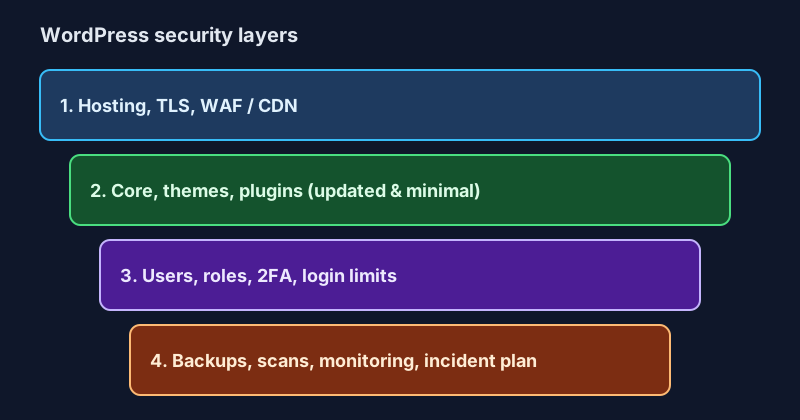
Figure 1. Treat security as layers. A strong password does not help if an outdated plugin is open to the internet, and a WAF does not replace backups.
Block 1: close the common holes (do these first)
1. Keep core, themes and plugins updated
Turn on automatic updates for minor core releases. For plugins and themes, update on a schedule you actually keep, ideally weekly, and always after a security advisory. Delete anything you do not use. An inactive plugin with a known vulnerability is still a vulnerability if the files are on disk.
2. Remove unused themes and default content
Keep one parent theme and one child theme if you need customisations. Delete Twenty Twenty-Something themes you never activated, sample pages and demo import leftovers. Less code on disk means less to exploit and less to audit.
3. Use unique, long passwords and a password manager
Every admin and editor account needs a unique password of at least 16 characters. Do not reuse the hosting panel password on WordPress, and do not reuse WordPress passwords across client sites. A password manager is cheaper than a malware cleanup.
4. Turn on two-factor authentication for every privileged user
Install a maintained 2FA plugin and require it for Administrators and Editors. SMS is better than nothing; an authenticator app or hardware key is better still. If a password leaks from another breach, 2FA is what stops the next login.
5. Change the default admin username pattern
Do not create a user named admin, administrator or the site brand as the only admin. Attackers still spray those usernames. Create a personal admin account, then delete or demote any default account you inherited from a previous developer.
6. Limit login attempts and lock out obvious abuse
Use a maintained limit-login or WAF rule so repeated failures from one IP get delayed or blocked. Pair this with step 4 so a lockout does not strand a real admin who mistyped once. Do not invent your own login-protection plugin unless you enjoy maintaining auth code.
7. Move PHP file editing out of the dashboard
Add these to wp-config.php on production so a stolen admin session cannot rewrite plugin files from the UI:
define('DISALLOW_FILE_EDIT', true);
define('DISALLOW_FILE_MODS', true); // optional on locked-down hosts; skip if you deploy updates through the UI
If you deploy with Git or a host that manages updates for you, DISALLOW_FILE_MODS is appropriate. If you still update plugins in wp-admin, keep file mods enabled and rely on DISALLOW_FILE_EDIT.
8. Set sane file and directory permissions
On a typical Linux host: directories 755, files 644, and wp-config.php as restrictive as the host allows (often 440 or 400). The web server user must be able to read what it needs and must not be able to write the whole tree. Shared hosts vary; follow your host's documented layout rather than copying a random blog post.
9. Force HTTPS everywhere
Install a valid TLS certificate, redirect HTTP to HTTPS, and set FORCE_SSL_ADMIN to true. Mixed content and cookie theft over HTTP are still common on sites that "added SSL" but never fixed the redirect or the admin cookie flags.
10. Take backups you have actually restored
Daily offsite backups of files and the database, retained for at least 30 days, with a restore test every quarter. A backup that has never been restored is a hope, not a plan. Store copies outside the same VPS. If the site is compromised, you need a clean copy the attacker cannot encrypt or delete.
Block 2: raise the bar for real traffic and teams
11. Put a WAF in front of WordPress
Cloudflare, Sucuri, Wordfence at the edge, or your host's WAF all reduce obvious probe traffic. A WAF is not a substitute for updates. It is a filter that buys time and cuts noise. Tune it so legitimate admin and checkout paths still work.
12. Hide or rate-limit xmlrpc.php if you do not need it
XML-RPC is a frequent brute-force and amplification target. If you do not use the WordPress mobile app or Jetpack features that need it, block or tightly restrict xmlrpc.php at the server or WAF. If you do need it, allow only the methods you use and rate-limit the rest.
13. Disable directory listing and stop serving backups from the web root
Ensure the web server does not list directory contents. Keep .sql, .zip, .tar.gz and copy-paste wp-config.php.bak files out of the public document root. Attackers request those paths by name.
14. Use least-privilege roles
Give writers the Author or Contributor role, not Administrator. Shop managers and SEO plugins often ask for more capability than they need; challenge that. One compromised low-privilege account is a content problem. One compromised Administrator account is a full takeover.
15. Review plugins like you review vendors
Before you install a plugin, check the last update date, install count, support threads and whether it is abandoned. Prefer fewer, well-maintained plugins over a stack of one-off tools. Remove "coming soon", old page builders and unused page-builder add-ons after launch.
16. Harden wp-config.php and keys
Generate fresh salts from the WordPress secret-key service when you inherit a site. Keep database credentials unique. Do not commit wp-config.php to a public repository. On hosts that support it, move wp-config.php one level above the web root.
17. Restrict admin access by IP when the team is small
If only two people ever log in, allow /wp-admin and wp-login.php from their office or VPN IPs at the WAF or web server. This is blunt and effective. It is a poor fit for distributed teams and agencies unless you maintain an allowlist carefully.
18. Scan for malware on a schedule
Run a reputable malware scanner weekly and after every suspicious spike in traffic or admin email. Confirm findings manually before mass-deleting files. False positives happen. After a confirmed infection, rotate all passwords, salts and API keys, then follow a recovery playbook rather than "cleaning in place" forever.
19. Monitor uptime, file changes and admin logins
Uptime monitoring tells you the site went down. File-integrity monitoring tells you index.php changed at 3am. Login notifications tell you a new Administrator appeared. You do not need a huge SIEM. You need a signal you will actually read.
20. Have an incident plan written down
Who gets the host login, the domain registrar, the DNS, the backup location and the Search Console property? Write it once. When a Japanese SEO spam flood or a skimmer appears, you should not be hunting for credentials in old email. My technical SEO checklist covers the crawl and index side once the site is clean again.
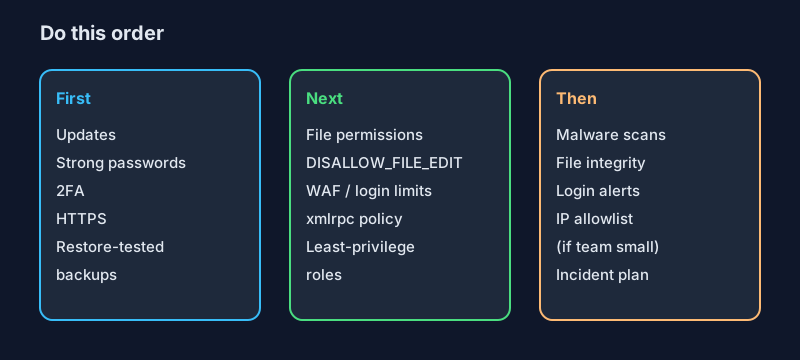
Figure 2. Do the left column before you buy more tools. Most breaches I see would have been stopped by updates, 2FA and a restore-tested backup.
A one-hour pass you can run today
If you only have an hour on a site you maintain:
- Update core, themes and plugins; delete unused ones.
- Confirm HTTPS redirects and
DISALLOW_FILE_EDIT. - Enforce 2FA for Administrators.
- Confirm yesterday's backup exists offsite and open one file from it.
- Skim users for unknown Administrators and remove them.
- Turn on a basic WAF or host firewall rule for
/wp-login.php.
That hour removes more risk than installing three more security plugins.
FAQ
Is WordPress secure enough for a business site?
Yes, when it is maintained. WordPress core gets frequent security releases. Most incidents come from outdated plugins, weak credentials and missing backups, not from "WordPress is insecure" as a slogan.
Do I need a paid security plugin?
Not always. Start with updates, 2FA, HTTPS, permissions and backups. Add a scanner or firewall plugin when you want scheduled scans and login protection in one place. A CDN WAF often covers the edge better than a plugin alone.
How often should I update plugins?
Weekly is a good default for active sites. Apply security releases as soon as you can after reading the changelog. Test on staging when a major plugin version jumps.
What should I do if the site is already hacked?
Take it offline or put up a maintenance page if payments or customer data are at risk. Restore from a clean backup if you have one. If not, clean malware carefully, rotate every secret, reinstall core and themes from known-good copies, then request removal of spam URLs in Search Console. See how I removed hacked spam URLs from Google.
Can a developer harden WordPress without slowing it down?
Yes. Most of this checklist is configuration, not heavy runtime scanning on every page view. Put expensive scans on a schedule, not on each frontend request, and keep caching and a CDN in place as described in broader performance and SEO work.
Need a hardened WordPress site?
I set up and maintain WordPress sites with this checklist as the baseline: updates, access control, WAF, backups and a recovery path you can actually use. Start with WordPress development, or tell me what broke and we will triage from there.